Argentina Electronic Invoicing in ERPNext: AFIP Compliance & Automation
Implement AFIP-compliant electronic invoicing in ERPNext for Argentina. Automate invoice validation, ensure tax compliance, and streamline financial operations.
_11zon.png&w=1200&q=75)
Introduction
ERPNext is a versatile open-source ERP system that allows businesses to manage various operations efficiently. Implementing electronic-invoicing compliance in ERPNext ensures seamless integration with government tax regulations. It automates invoice generation, validation, and real-time reporting to tax authorities. This customization reduces manual errors, enhances accuracy, and streamlines financial operations. Businesses benefit from improved efficiency and compliance with legal standards.
Setup
Follow these steps to set up the Argentina Compliance doctype and enable electronic-invoicing features in ERPNext:
1. Prerequisites
ERPNext version 14 or later is installed and running.
You have System Manager or Administrator role.
Your company’s Tax ID (CUIT) and AFIP Certificate & Key are available.
Your system timezone is configured for Argentina/Buenos_Aires.
2. Installation
Navigate to your ERPNext bench directory: cd ~/frappe-bench
Get the app from the repository: bench get-app argentina_compliance
Install the app on your site: bench --site yoursite.domain install-app argentina_compliance
Restart the bench: bench restart
3. Installation Behavior
Tax Templates for VAT will be automatically created in the system.
Required fields for Electronic Invoice will be automatically added in the Sales Invoice Doctype.
Required Doctypes such as AFIP Setting and Electronic Invoice Log will be automatically created in the system.
4. Initial Configuration
Step 1: Create Required file
CSR (Certificate Signing Request)
1. To obtain the certificate for the first time, the DN must be registered. To do this, you must submit a ‘certificate request’ or ‘Certificate Signing Request’ (CSR)
2. The CSR is generated on your computer using the OpenSSL tool… First, you must generate a private key in PKCS10 format with a minimum of 2048 bits : openssl genrsa -out MyPrivateKey 2048
3. Then you must generate the CSR itself:
openssl req
-new
-key MyPrivateKey
-subj "/C=AR/O=subj_o/CN=subj_cn/serialNumber=CUIT subj_cuit"
-out MyCSRRequest
4. Note that in the serialNumber field, you must write ‘CUIT’ followed by a blank space and then the 11 digits of the CUIT without separators.
Creating the Certificate in AFIP
1. Select the option: ‘New Certificate’ to access the form to create a DN and the certificate initially associated with it.
2. The fields to enter in the form are:
- Symbolic name of the DN.
- CUIT of the taxpayer.
- Certificate request in PKCS10 format.
4. Then click ‘Create DN and Obtain Certificate’. If there are no errors, the system returns an x509 certificate in PEM format.
5. Then you must copy and paste it into a plain text editor to save it on your local hard drive.
PFX Creation
If you need to create a PFX file, you can use OpenSSL. For example:
openssl pkcs12
-export
-inkey MyPrivateKey
-in certificate.pem
-out certificate.pfx
Production Certificate (ARCA)
1. Go to the ARCA portal (www.arca.gob.ar) and click the ‘Log In’ button.
2. Enter your ‘CUIT / CUIL / CDI’ and ‘password’ and click ‘LOGIN’.
3. Select the service ‘Digital Certificate Administration’.
4. Click ‘New Relationship’… Select the service ‘Digital Certificate Administration’… Press the ‘Confirm’ button.
5. Log out of the system and log back in.
6. Select the taxpayer.
7. Click on ‘Add alias’.
8. Choose a name for the alias and upload a CSR.
9. Click on ‘View’… to visualize and download the certificate to your PC.
Step 2: Configuring AFIP Settings
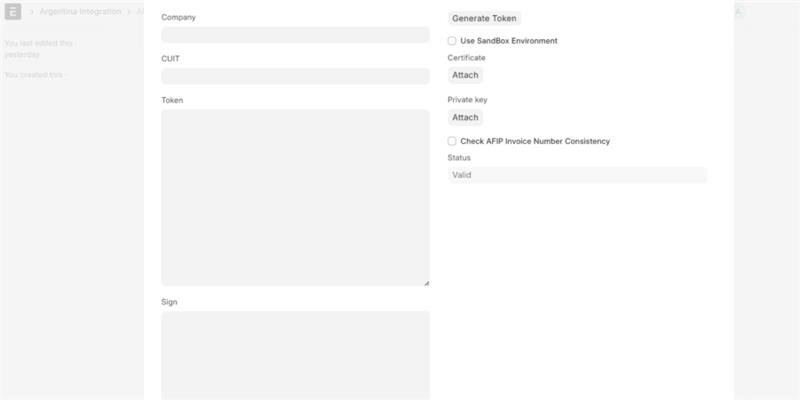
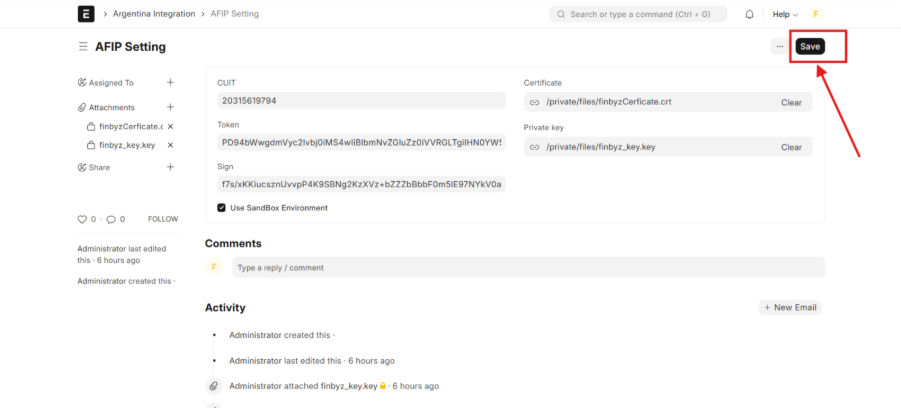
1. Go to: Accounting -- Argentina Integration -- AFIP Settings
2. Go to Credentials Tab.
.png)
Step 3: Set Company VAT and Fiscal Information
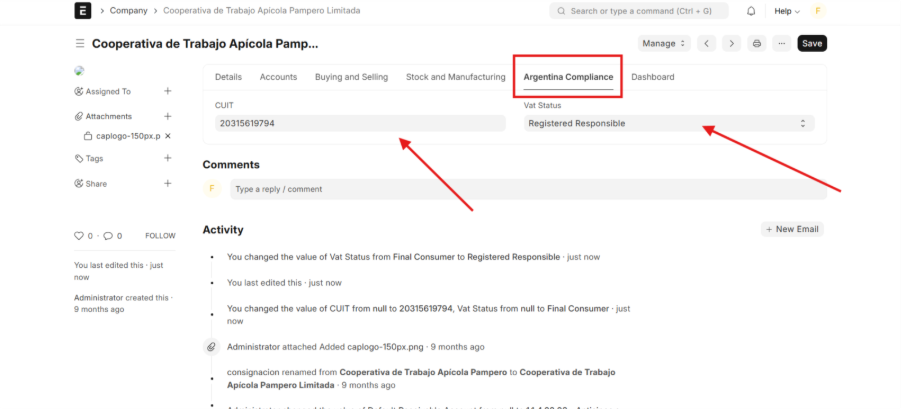
1. Go to: Accounting -- Company
Step 4: Sales Invoice Configuration
1. Go to AFIP setting and Details Tab.
2. In the Table row Select the Naming Series of the Sales Invoice for the Point of Sale created on the AFIP Portal.
3. Enter the POS Number (Recieved from AFIP portal ) corresponding to the Naming Series.
4. Save the Document
Custom Fields to Support Legal Compliance
To ensure seamless electronic-invoicing compliance within ERPNext, custom fields are introduced to meet regulatory requirements and facilitate tax reporting.
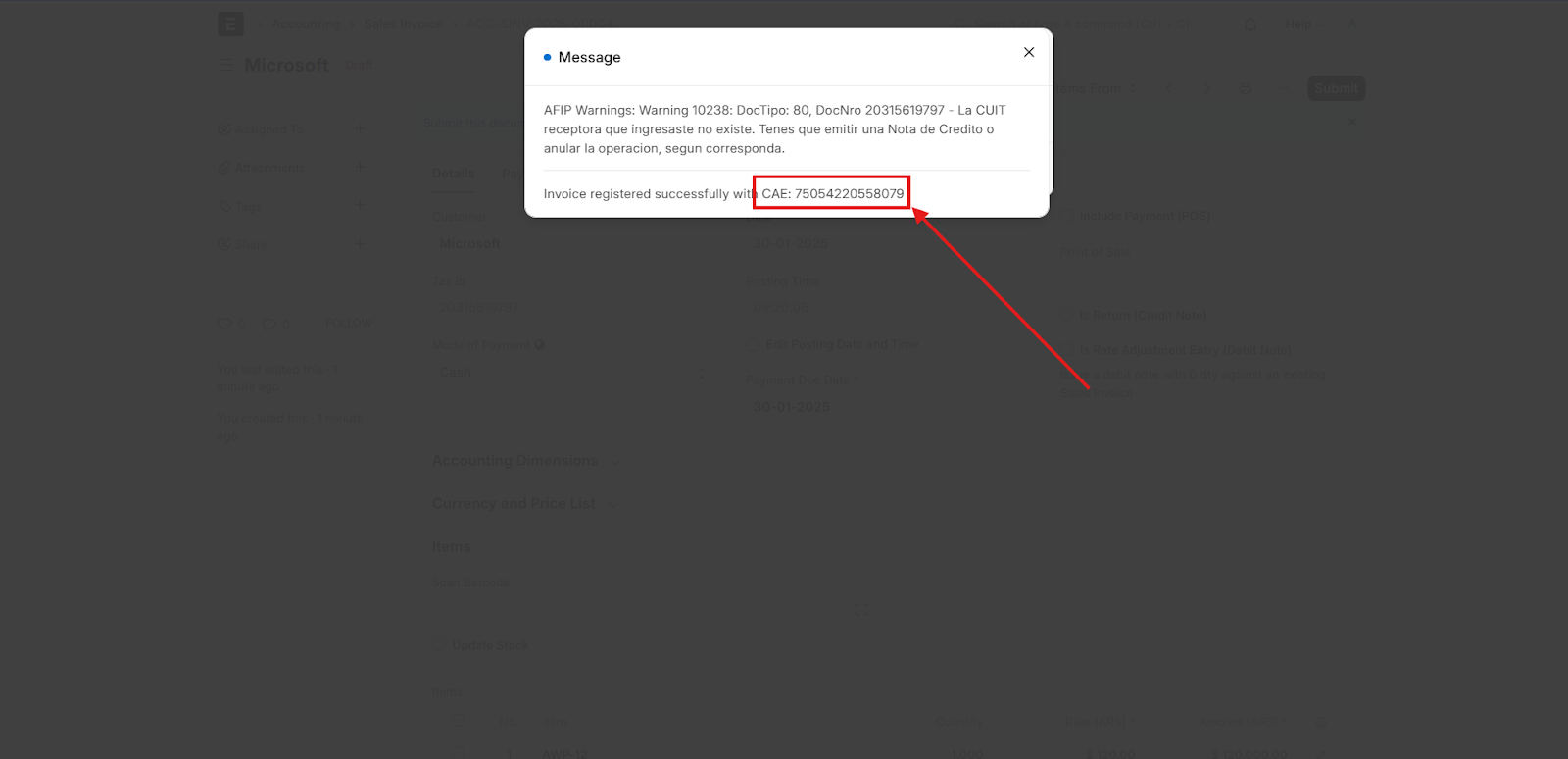
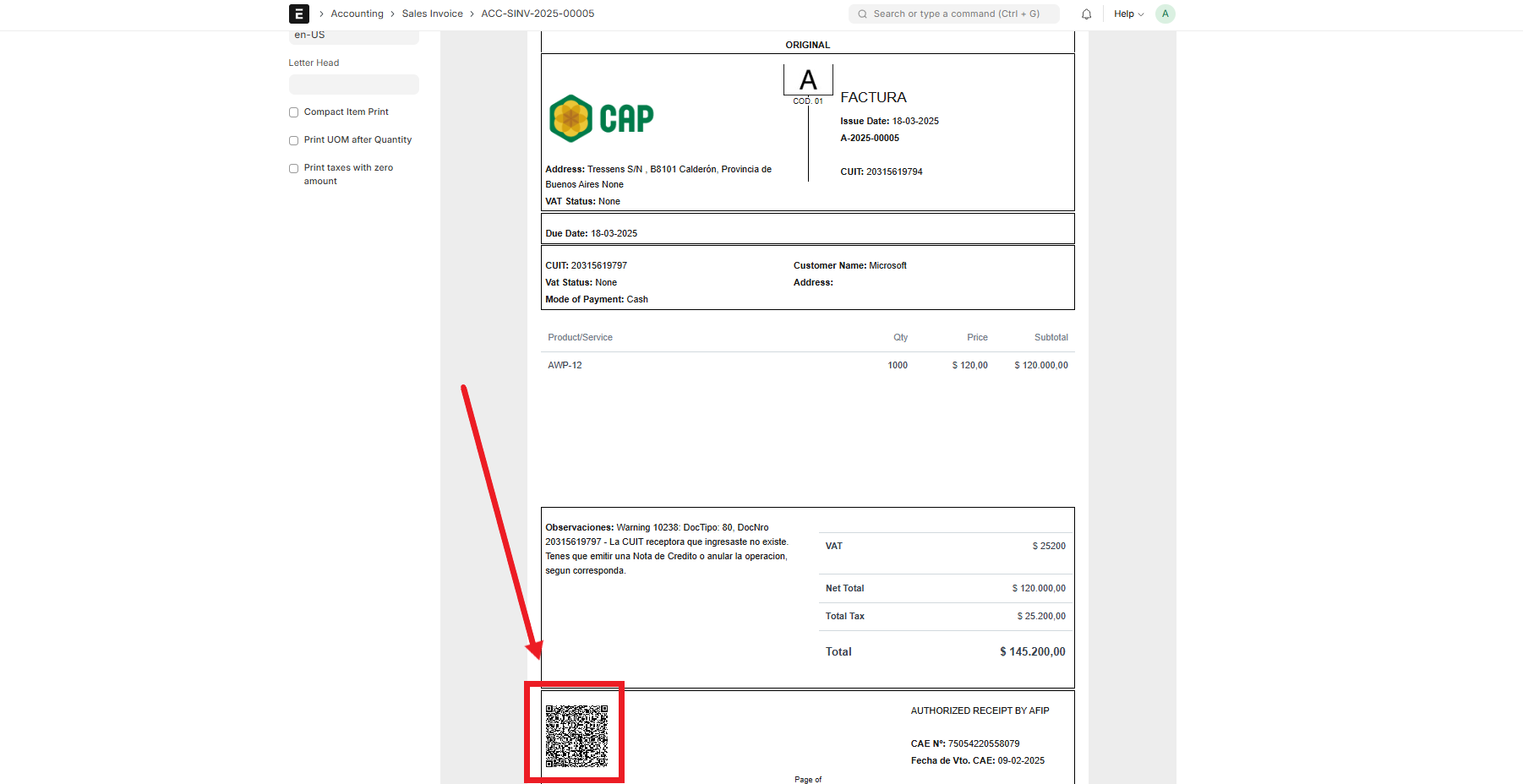
Dedicated fields to generate the CAE (Authorization Code) and track its expiration date for each invoice.
Custom fields to manage VAT statuses for both customers and the company, ensuring compliance with local tax regulations.
Support for multiple payment methods, including bank transfers, credit/debit cards, and digital wallets.
Custom fields to manage VAT statuses for both customers and the company, ensuring compliance with local tax regulations.
Customer-specific tax identification fields to accommodate different tax categories, such as exempt, general, and reduced VAT rates.
Enhanced Form Organization
To improve user experience and ensure a structured layout, form enhancements are implemented in ERPNext:
Tab Breaks: Grouping electronic invoicing fields into logical sections to enhance navigation and user efficiency.
Column Breaks: Optimizing field placement for better readability and workflow organization.
Predefined Select Fields: Standardized dropdown options for VAT statuses, payment methods, and tax categories to reduce manual errors and ensure consistency.
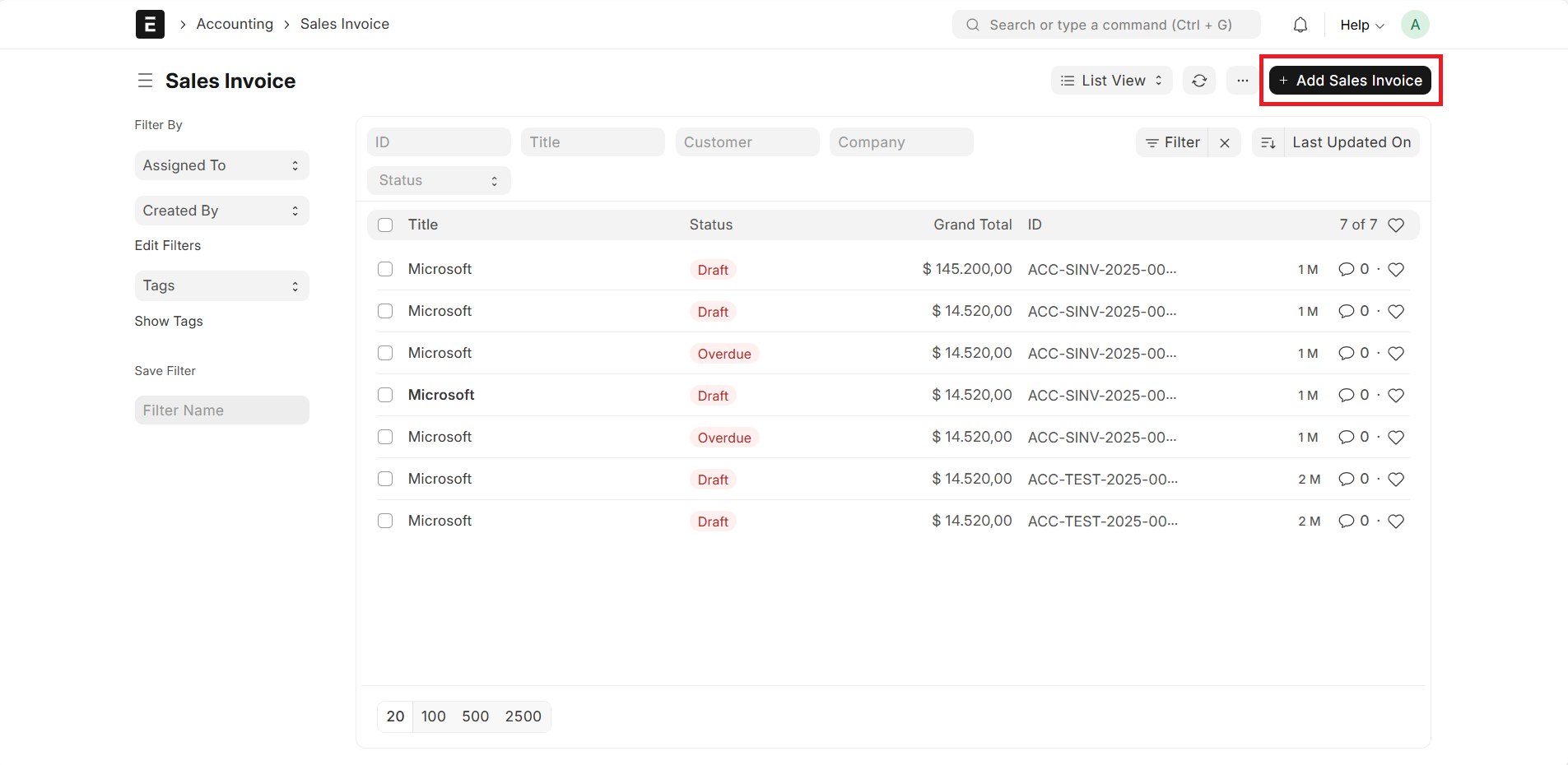
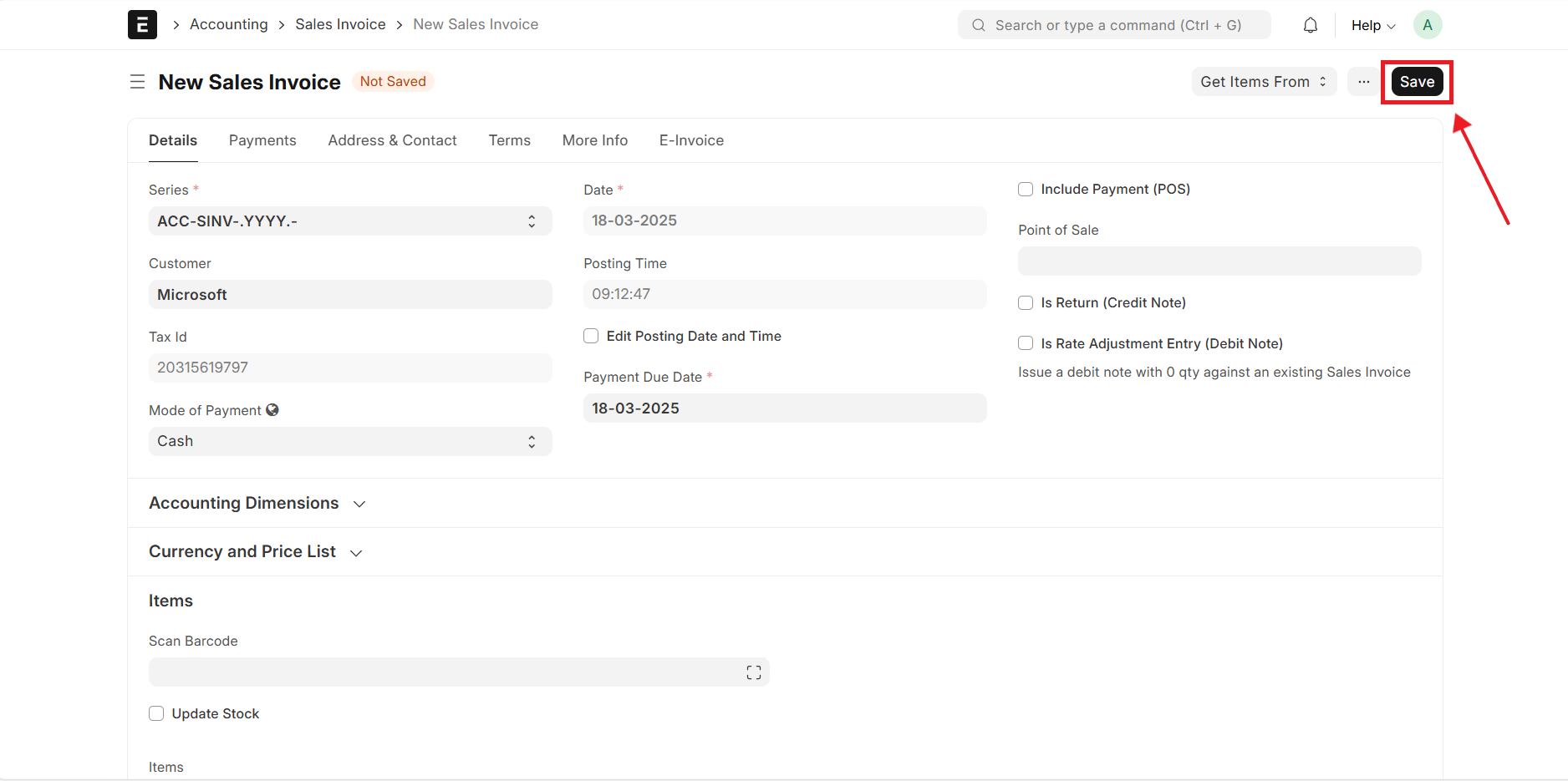
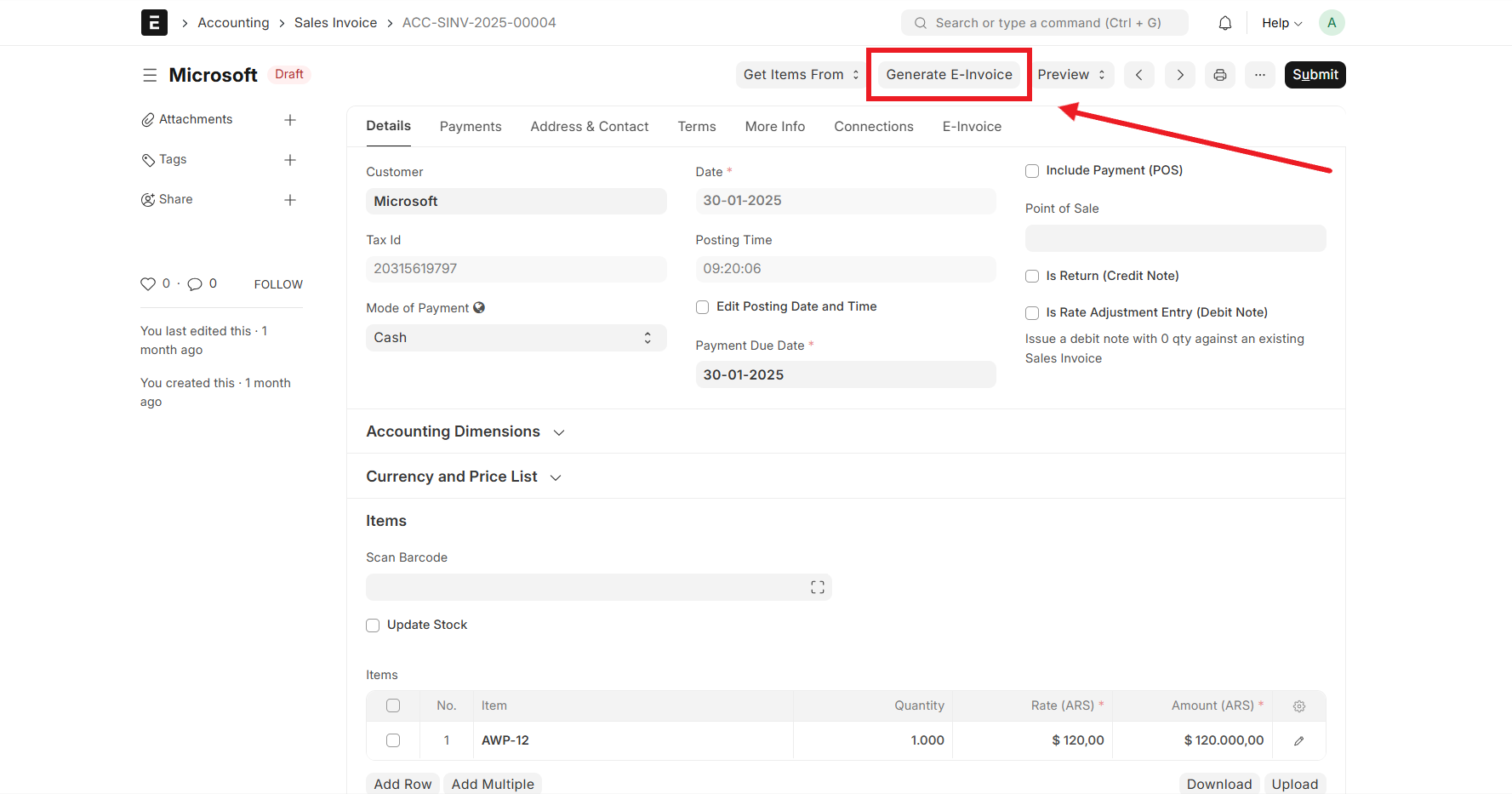
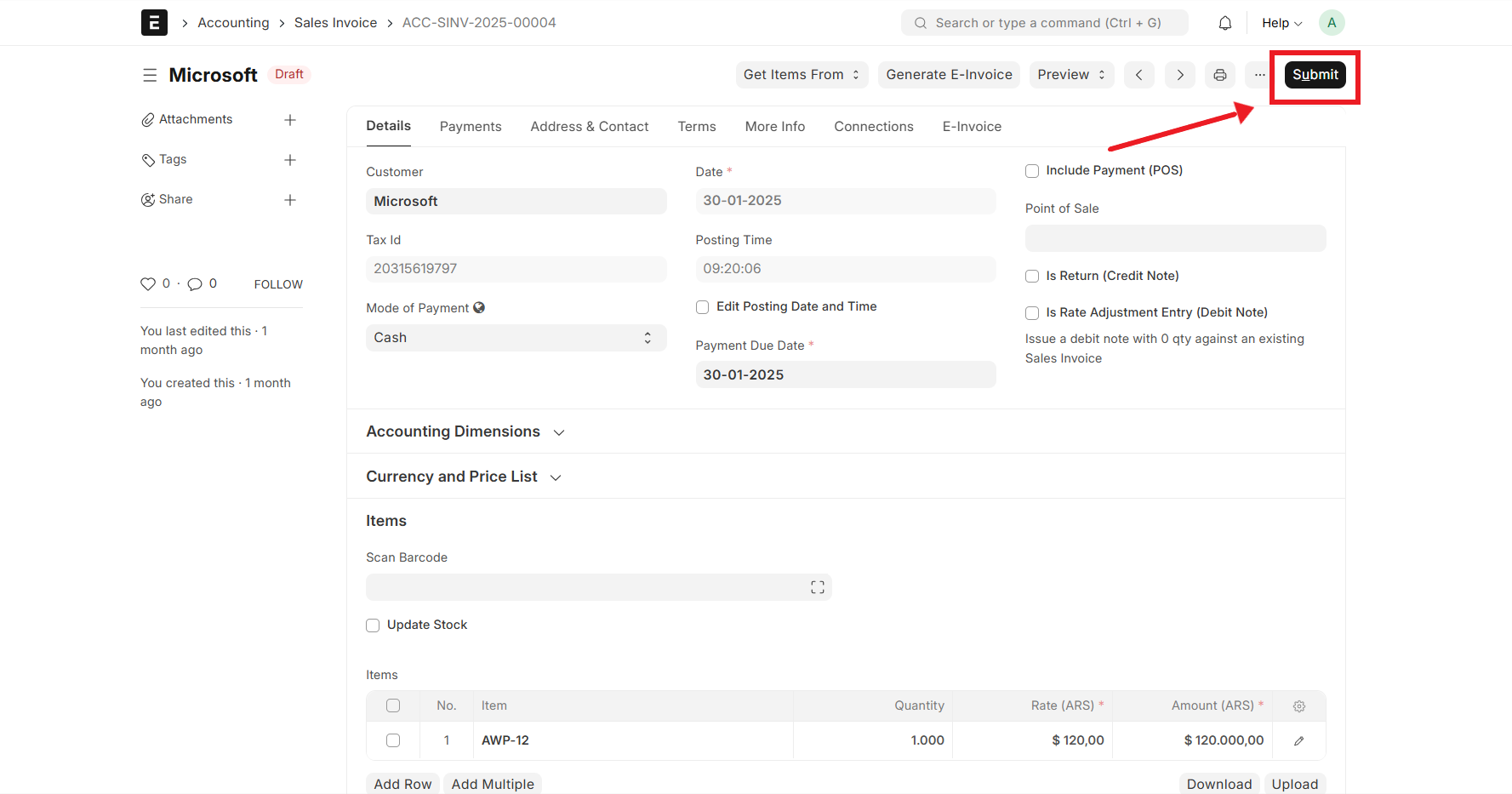
Process Flow for Sales Invoice with Electronic-Invoice Generation
A streamlined process flow is established to integrate electronic-invoicing into the sales invoice workflow:
Here's a quick video demonstrating the process flow integrating Electronic-Invoice into the sales invoice:
Support for Various Business Scenarios
ERPNext customizations cater to different business models and regulatory requirements:
Multi-Payment Method Handling: Process payments through cash, bank transfers, credit cards, and online gateways.
Multi-VAT Status Management: Assign appropriate VAT rates and exemptions based on customer and product categories.
How We Can Help Companies in Argentina
Our tailored ERPNext localization solution ensures businesses can seamlessly comply with Argentina's electronic-invoicing regulations while enhancing operational efficiency. Here's how we assist:
Integration with AFIP's electronic-invoicing API to validate and authorize invoices. Automatic generation of CAE and management of its expiration dates.
Elimination of manual processes by automating invoice validation and submission. Reduction in errors with predefined options and enhanced form organization.
Customization of ERPNext to include all required fields and features. Comprehensive training and documentation to ensure smooth adoption. Ongoing support for maintenance and future updates as regulations evolve.
Leveraging open-source ERPNext minimizes software licensing costs. Modular design allows scalability as businesses grow.
Conclusion
Implementing electronic-invoicing compliance in ERPNext streamlines tax reporting, reduces manual errors, and enhances regulatory adherence. With custom fields, optimized workflows, and security enhancements, businesses can ensure seamless, accurate, and legally compliant invoicing.
Know more about our ERP Software and ERP Implementation Services.
Documentation
Complete documentation for Argentina Electronic Invoicing in ERPNext is available here.
License
GNU GPL V3. (See license.txt for more information).
The code is licensed under the GNU General Public License (v3), and copyright is owned by FinByz Tech Pvt Ltd.