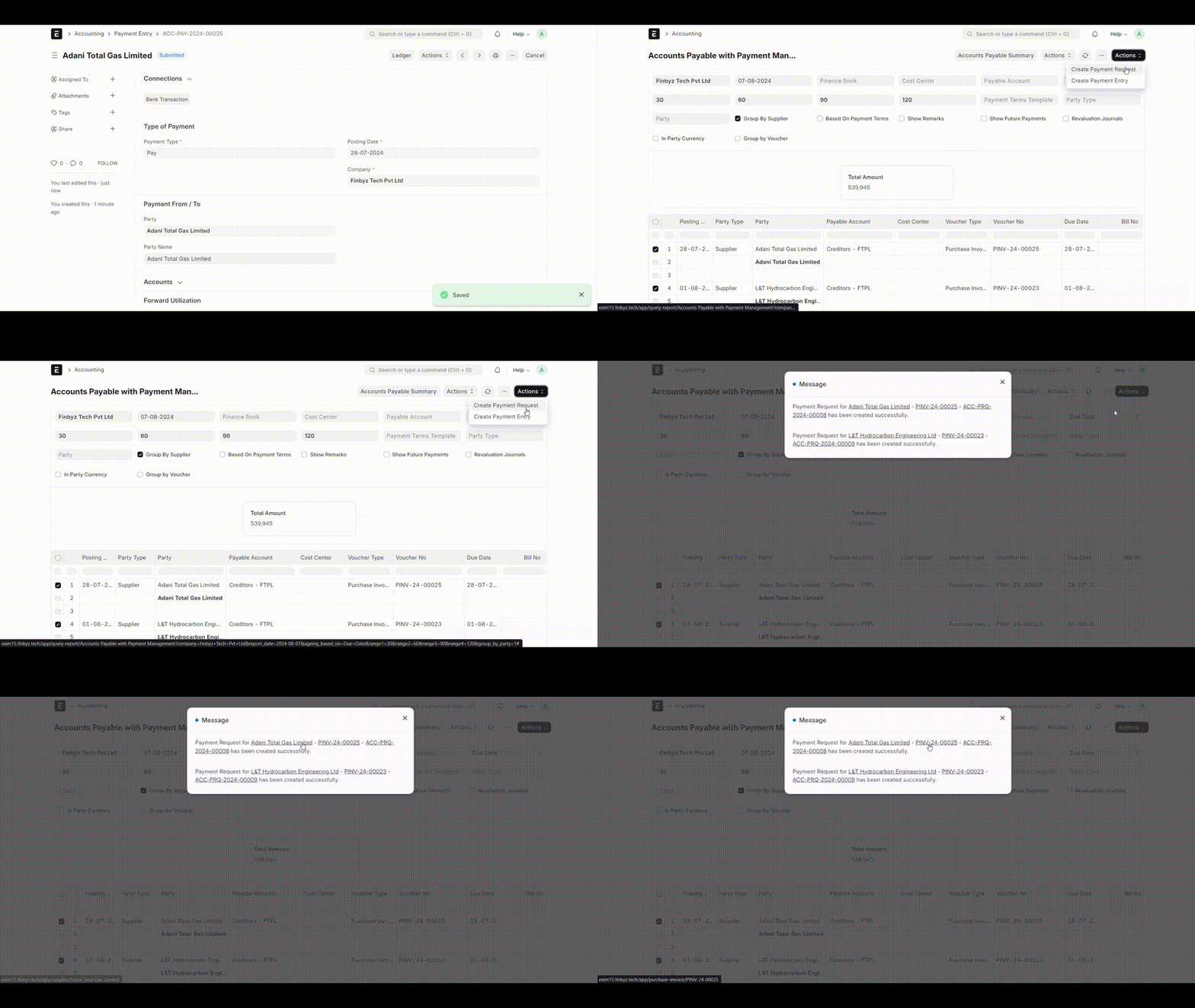
Accounts Payable with Payment Management Report
Manage outstanding payables and process payments directly from the Accounts Payable report in ERPNext. Select invoices, compare with bank balance, and create draft payment entries - all from a single view.
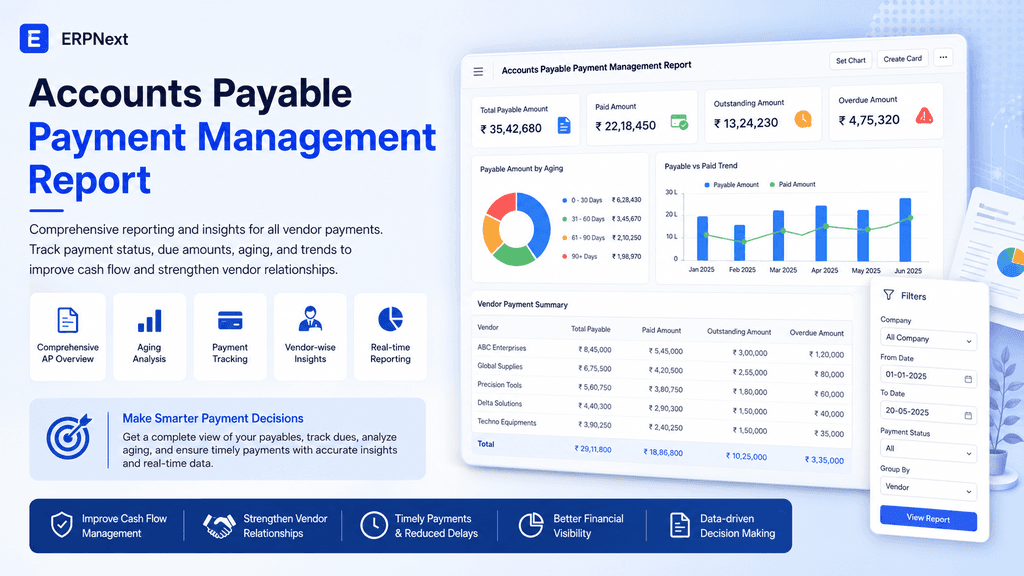
Problem Statement
The Accounts Payable report in ERPNext provides a comprehensive overview of all outstanding payables to suppliers. Now out of these payable, the management or finance head may want to decide which invoices to be processed today, based on various factors including the total payment they can process based on bank balance.
Currently there is no easy way to give instructions to process specific outstanding payments to the accounts team from the Accounts Payable report. This new report solves this problem.
Introduction
This report is identical to the Accounts Payable report, but it adds additional features of allowing the user to choose payments to be processed, shows the total amount of chosen payments to compare it with the bank balance, and processes payments by creating draft payment entries or payment orders directly from the report.
Access the report:
- Search for "Accounts Payable with Payment Management Report" in ERPNext.
- The report will load, displaying the relevant data.
Using the Report Filters
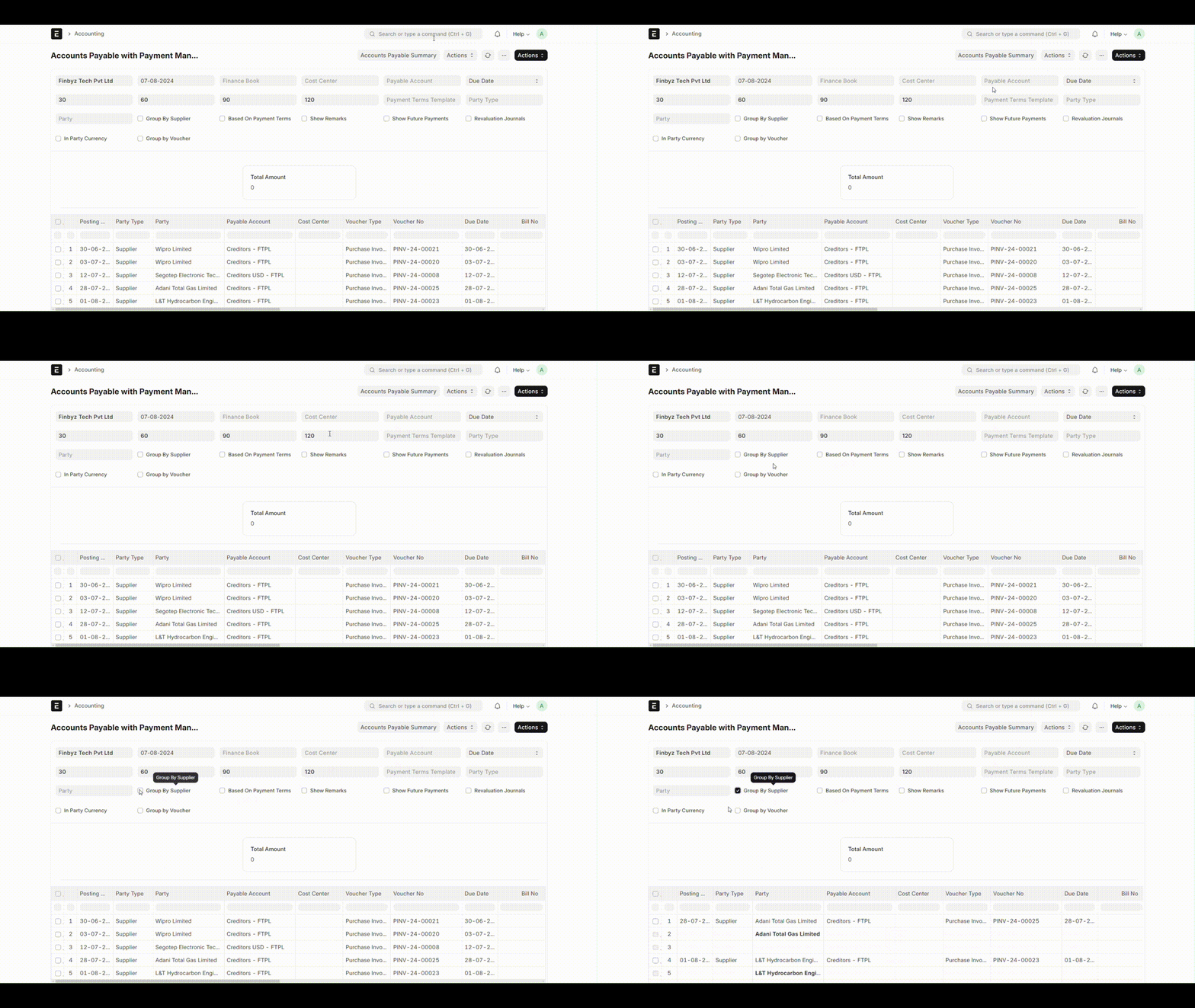
All filters in this report function as standard filters in the ERPNext Accounts Payable report.
Group By Supplier
When this filter is applied, the data is displayed as grouped by supplier.
Creating Payment Entries
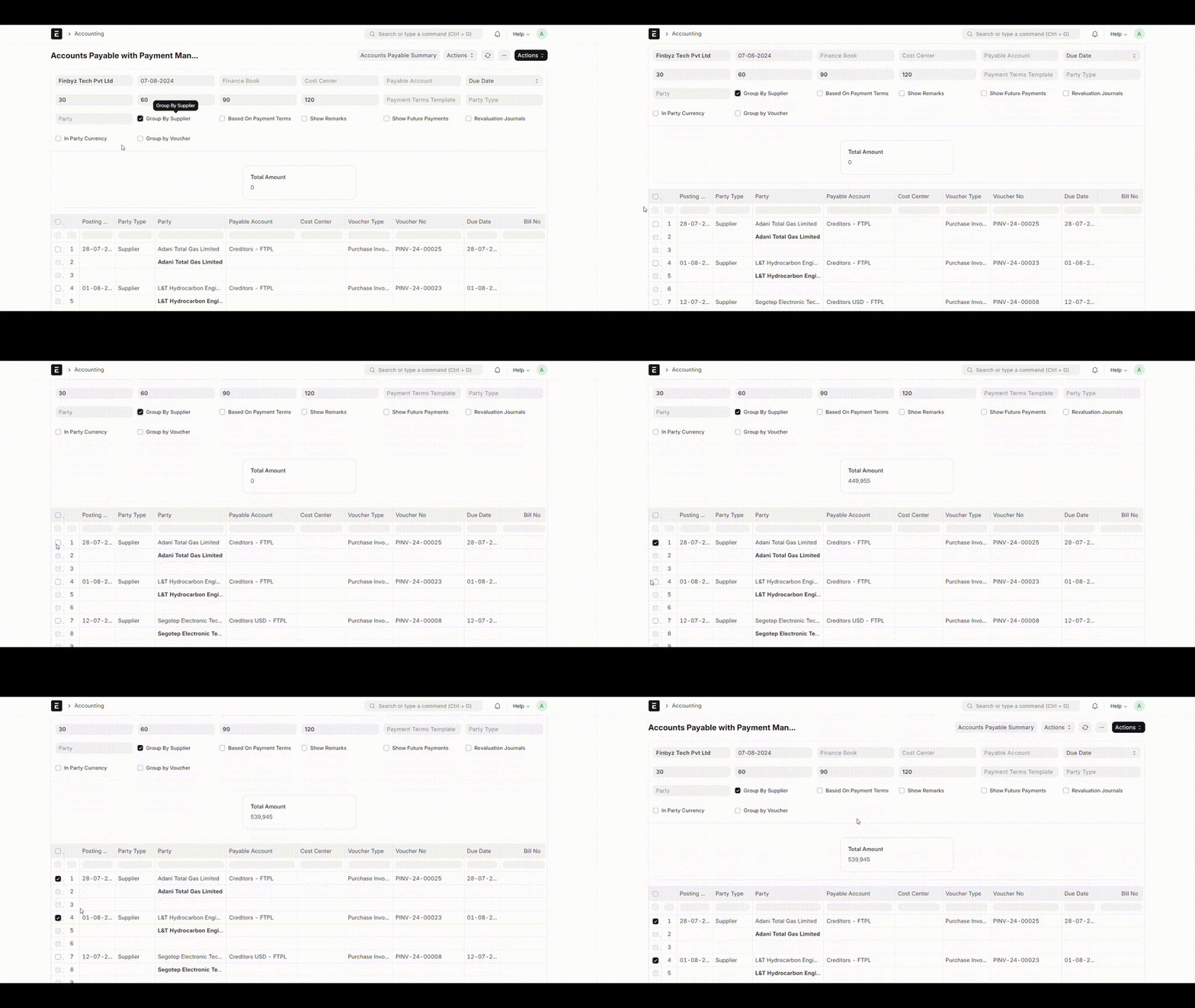
Selecting Rows
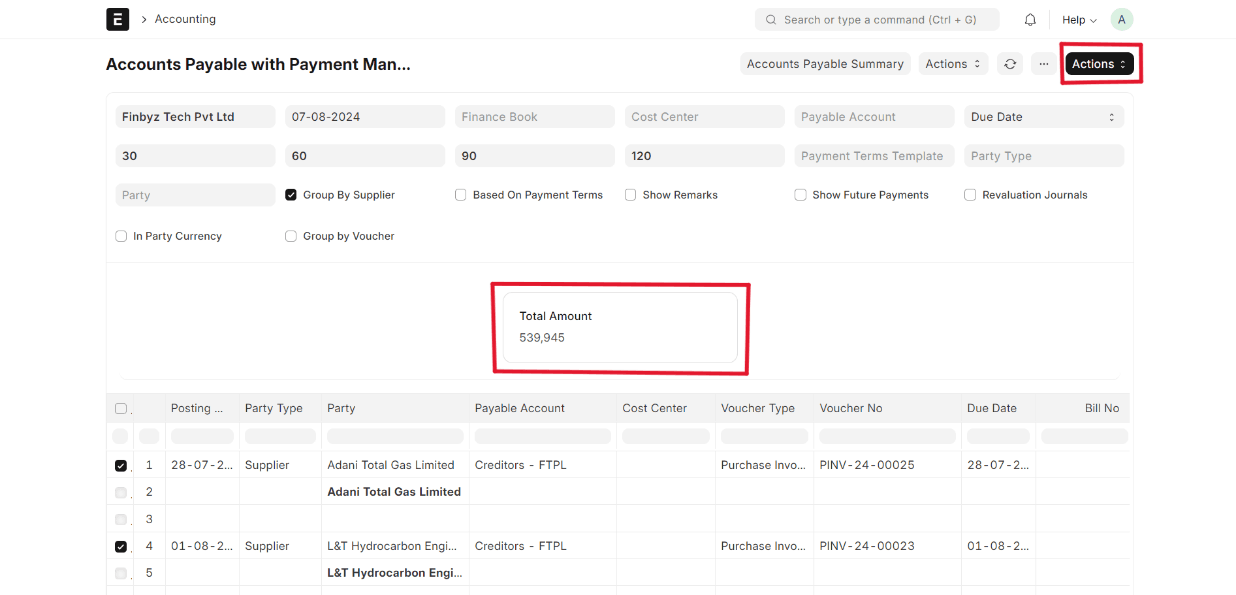
- Select the rows corresponding to the invoices you want to pay. The system adds the amount of each selected invoice to the number card, showing the total amount to be paid.
- Number Card: Displays the total amount of the selected invoices. Additionally, the "Actions" button will be visible at the upper right corner of the report.
Creating Payment Entries
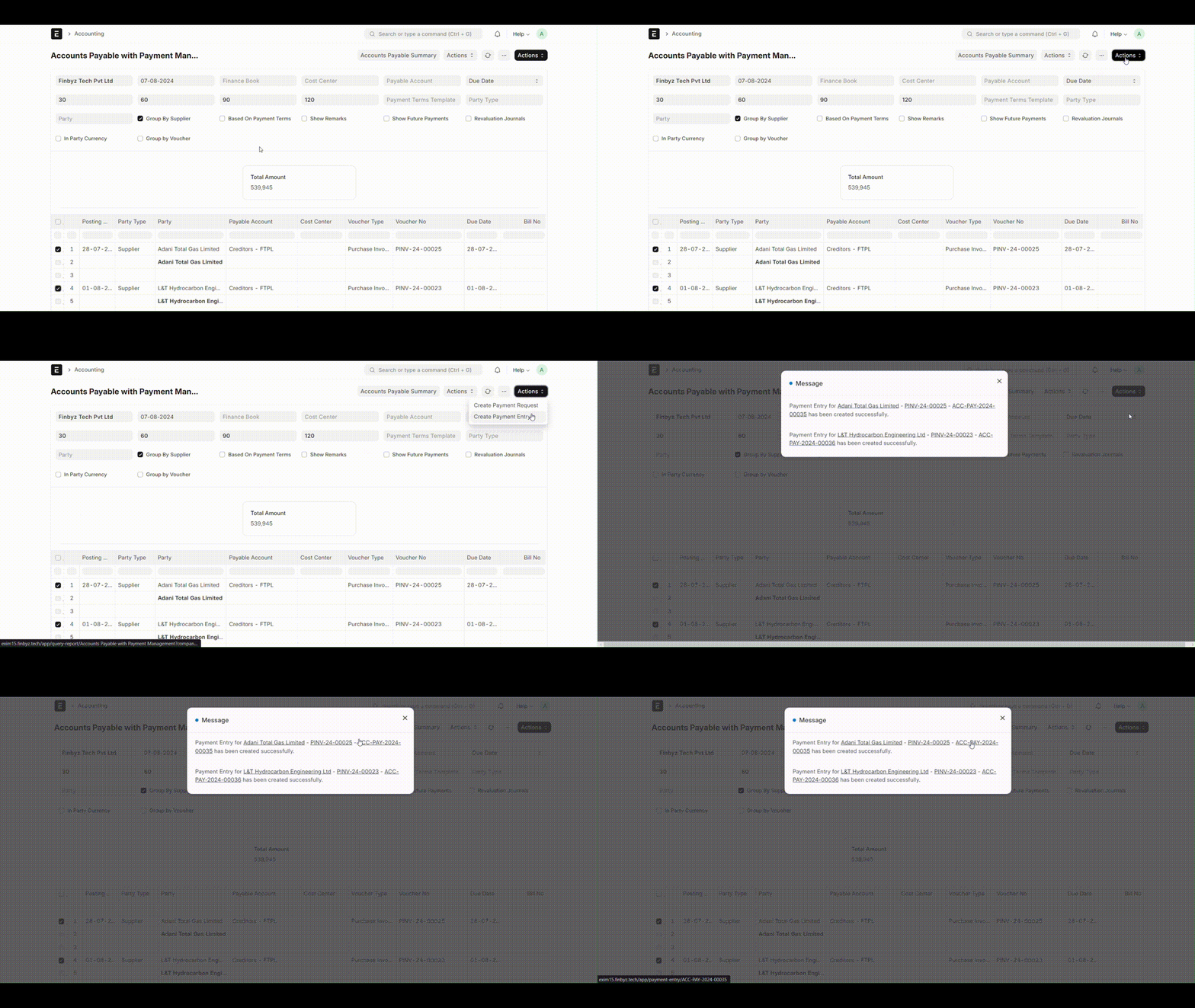
- Click on the Action button.
- Select Create Payment Entry.
- The system will create a payment entry for each selected supplier.
- Once the message appears following payment entry creation, clicking the payment entry link will take you to the relevant Payment Entry.
Additional Features
Handling Multiple Documents
If you have both Purchase Invoices and Journal Entries in the system, you can select rows for both. The system will create a payment for each selected document.
Create Payment Request
There is a Create Payment Request option within the Action button to automatically generate payment requests.