How to Programmatically Create a Communication in the ERPNext Timeline
Learn to use a Frappe server script in Python to automatically create 'Communication' DocType entries, making them visible in the timeline of reference documents like Leads.
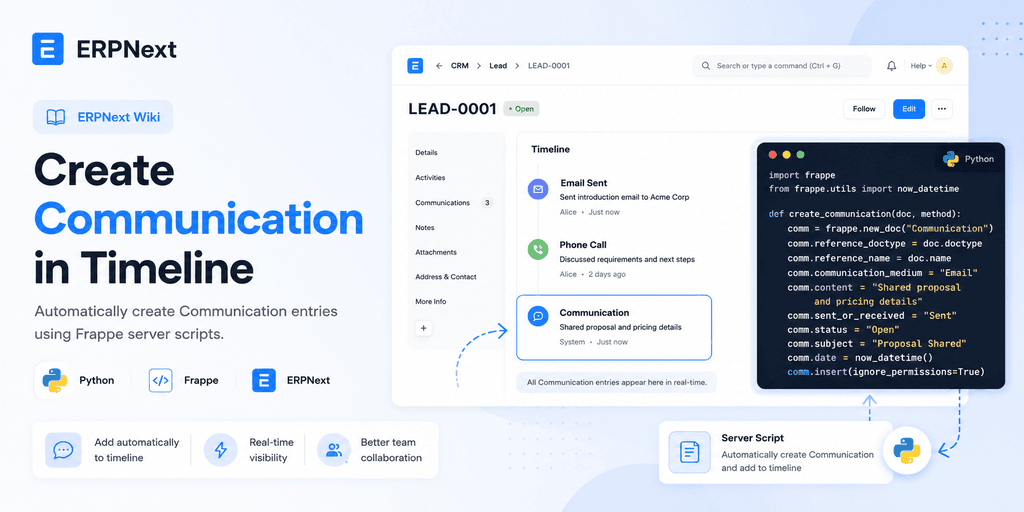
In ERPNext and the Frappe Framework, maintaining a clear history of interactions is crucial for CRM and other business processes. The 'Communication' DocType is the standard way to log activities like meetings, calls, and comments against other documents, such as Leads or Customers.
This server script demonstrates how to automate this process. When triggered by an event (e.g., submitting a 'Lead Meeting' document), it programmatically creates a new Communication entry, formats the relevant details, and links it to the appropriate Lead. This ensures that the document's timeline is always up-to-date without manual intervention.
| 1 | def new_comm(self, method): |
| 2 | url = "http://erp.finbyz.in/desk#Form/Lead%20Meetings/" + self.name |
| 3 | if self.actionables: |
| 4 | discussed = "<strong><a href="+url+">"+self.name+"</a>: </strong>"+ "Met "+ self.contact_person + " On "+ self.meeting_from +"<br>" + self.discussion.replace(' |
| 5 | ', "<br>")+ "<br><strong>Actionable:</strong>" |
| 6 | else: |
| 7 | discussed = "<strong><a href="+url+">"+self.name+"</a>: </strong>"+ "Met "+ self.contact_person + " On "+ self.meeting_from +"<br>" + self.discussion.replace(' |
| 8 | ', "<br>") |
| 9 | cm = frappe.new_doc("Communication") |
| 10 | cm.subject = self.name |
| 11 | cm.communication_type = "Comment" |
| 12 | cm.comment_type = "Comment" |
| 13 | cm.content = discussed |
| 14 | cm.reference_doctype = "Lead" |
| 15 | cm.reference_name = self.lead |
| 16 | cm.user = frappe.session.user |
| 17 | cm.sender_full_name = get_fullname(frappe.session.user) |
| 18 | cm.save(ignore_permissions=True) |
Understanding This Code
What It Does
This server script programmatically creates a new 'Communication' document in Frappe/ERPNext. It formats content from a source DocType (like a meeting) and links it to a reference DocType (like a Lead), making the interaction visible in the document's timeline.
When To Use
Use this script in a DocType server script, triggered by an event like 'on_submit' or 'on_update', to automatically log activities. For example, after a 'Lead Meeting' document is submitted, this script can create the corresponding communication entry on the associated 'Lead' timeline.
Prerequisites
- •Basic understanding of Frappe DocTypes
- •Familiarity with Frappe Server Scripting (Python)
Key Concepts
Important ideas to understand in this code
frappe.new_doc
This core Frappe API function creates a new document instance in memory. It takes the DocType name as an argument and returns a new document object that you can populate with data before saving.
Learn moreCommunication DocType
A standard DocType in ERPNext for logging interactions like emails, calls, meetings, and comments. Documents of this type are linked to other records to build a comprehensive timeline.
Learn moreReference DocType & Name
The `reference_doctype` and `reference_name` fields are essential for linking the Communication to another document. Setting these correctly ensures the communication appears in the correct timeline.
Learn moredoc.save(ignore_permissions=True)
This method saves the document to the database. The `ignore_permissions=True` flag is crucial for server-side automation, as it allows the system to create documents even if the triggering user lacks direct permissions.
Learn moreStep-by-Step Tutorial
Follow along to understand how this code works
Identify the Trigger DocType and Event
First, determine which DocType will trigger this script. In this example, it's likely a custom DocType like 'Lead Meeting'. You'll also need to choose the event, such as 'On Submit' or 'On Save'.
# In this example, 'self' refers to an instance of the trigger DocType.
# For example, a 'Lead Meeting' DocType.Create a Server Script
Navigate to the 'Server Script List' in your Frappe instance. Create a new script, give it a name, select 'DocType Event' as the Script Type, and choose the DocType and event you identified in step 1.
// From the awesome bar, search for 'Server Script List'
// Click 'Add Server Script'
// Set 'Script Type' to 'DocType Event'
// Set 'Reference DocType' to your source DocType (e.g., 'Lead Meeting')
// Set 'DocType Event' to 'Before Save' or 'After Insert'Adapt the Script Logic
Copy the provided code into the script editor. You must change the field names (e.g., `self.contact_person`, `self.discussion`, `self.lead`) to match the exact fieldnames in your trigger DocType.
# The 'self' object gives you access to the fields of the trigger document.
# Ensure these fieldnames exist in your DocType:
# self.name: The document's unique ID (usually available by default)
# self.contact_person: Field for the contact person's name
# self.meeting_from: A date or datetime field for the meeting time
# self.discussion: A text field for meeting notes
# self.lead: A Link field to the associated Lead documentSet the Communication Reference
Crucially, ensure the `cm.reference_doctype` and `cm.reference_name` fields are set correctly. They tell the system which document's timeline to add this communication to.
cm.reference_doctype = "Lead" # The target DocType for the timeline
cm.reference_name = self.lead # The specific document's name from the link fieldSave and Test
Enable the server script and save it. Now, create and save/submit a new document of your trigger DocType. Go to the referenced Lead (or other document) and check its timeline. You should see the newly created communication entry.
# After saving the script, create a new 'Lead Meeting'.
# Fill in the details and submit it.
# Open the linked 'Lead' document and scroll down to the timeline.
Common Issues & Solutions
Troubleshoot problems you might encounter
