How to Install OpenClaw (formerly Clawdbot): Step-by-Step Setup
Install OpenClaw on your own computer or a private server with one command, connect it to Telegram, approve your first chat and set your first reminder. Updated for the current OpenClaw installer, which replaced the Clawdbot and Moltbot setup.
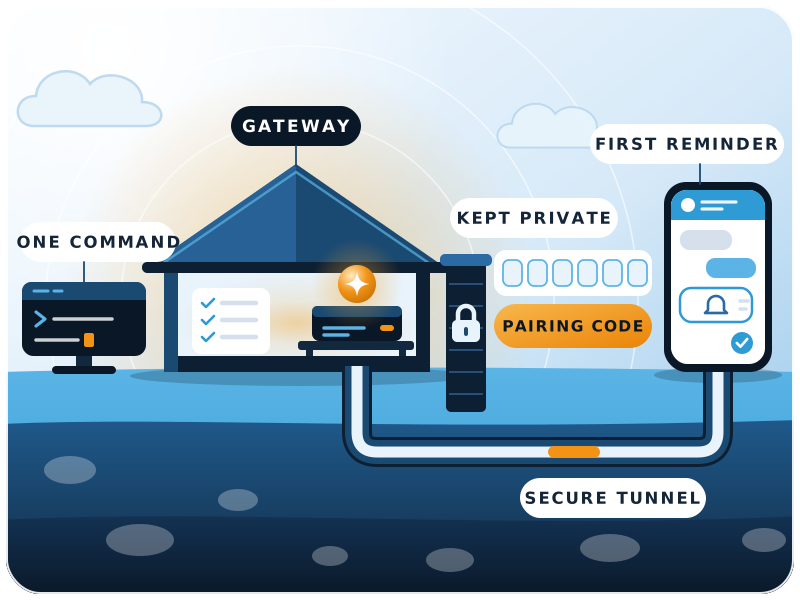

- Command to install
- 1
- Node.js version the installer sets up
- 24 / 26
- Telegram pairing code lifetime
- 1 hour
- Gateway port, kept on this machine only
- 18789
The short answer
How to install OpenClaw, in short
In short
Run the one-line installer, follow the onboarding, let it install the Gateway as a background service, then add a Telegram bot and approve your first message with a pairing code. Plan on 30 to 45 minutes. OpenClaw is the same project that used to be called Clawdbot and then Moltbot. The old clawd.bot installer and setup steps no longer apply.
What you need
- A Mac, Linux machine or Windows PC (native or WSL2), or a small private server
- An API key from a model provider such as Anthropic or OpenAI, or a local model
- A Telegram account (or another chat app OpenClaw supports)
- About 30 to 45 minutes and a terminal you can paste into
Not sure OpenClaw is the right tool? Our OpenClaw vs Claude Code comparison explains what each is for.
Before you start
Where should you run OpenClaw?
On your own computer
Easiest and safest to start with. The assistant only works while the computer is on and awake, which is fine for trying it out.
On a small private server
For an assistant that works around the clock. Keep the Gateway on the server itself and reach it through an SSH tunnel or Tailscale. Don't open its port to the internet.
OpenClaw's remote access guide says the safest default is a Gateway bound to the machine itself (loopback), reached by SSH tunnel or Tailscale Serve, with no public exposure. If you ever bind it more widely, it must use a token, a password or a trusted proxy.
Step by step
Install OpenClaw
- 1Run the installer
It detects your system, installs a supported Node.js if needed, installs OpenClaw and starts onboarding.
macOS, Linux or WSL2 curl -fsSL https://openclaw.ai/install.sh | bashWindows PowerShell iwr -useb https://openclaw.ai/install.ps1 | iex - 2Complete onboarding
Choose Quick start, pick your model provider and paste its API key. If you want the older step-by-step wizard, run it instead:
openclaw onboard --classic - 3Start the Gateway as a background service
Skip this if you accepted the background option in Quick start.
openclaw gateway install openclaw gateway start openclaw gateway status - 4Open the dashboard
The Control UI opens at
http://127.0.0.1:18789/on the same machine. You can chat with the assistant here before adding any app.openclaw dashboard
Your first chat app
Connect OpenClaw to Telegram
The OpenClaw docs call Telegram the fastest channel to set up. WhatsApp, Slack, Discord, Teams, Signal and others work in a similar way.
| Step | What to do |
|---|---|
| 1. Create a bot | In Telegram, open @BotFather (check the handle is exactly that), send /newbot, follow the prompts and copy the token. |
| 2. Add the token | openclaw channels add --channel telegram --token <bot-token> |
| 3. Check the channel | openclaw channels status --probe |
| 4. Approve your first message | Send your bot any message. Direct messages need pairing by default, so this creates a request with a code. Within an hour, run openclaw pairing list telegram, then openclaw pairing approve telegram <CODE>. |
Group chats are allowlisted and need a mention by default. The full options are in the Telegram setup guide.
Prove it works
First tests after installing
Start small. If these three work, the rest will too.
Reminder test
Research test
Inbox test
Once these work, set up a morning brief or a quiet-hours check with Automations. Our guide to a proactive AI assistant with OpenClaw shows what to schedule first.
Read before you connect accounts
Costs and safety
What it costs
- OpenClaw itself is free, open-source software (MIT licence).
- You pay your model provider for usage, so costs rise with how much the assistant does. Set a monthly spending limit with the provider before you start.
- A server for an always-on assistant is an extra monthly cost. Set a billing alert with your cloud provider too.
Keep it safe
Anyone who can message your assistant can make it act on what you've connected. Keep pairing on, keep your own user ID in the allowlist, and treat every incoming message as untrusted, as OpenClaw's README advises.
- Give the assistant its own email and service accounts, never your personal ones
- Start read-only; add write access one tool at a time
- Keep the Gateway on loopback; use an SSH tunnel or Tailscale for remote access
- Turn on sandboxing: tools run on the host unless you configure it
- Install only skills and plugins you have read or trust
- Keep API keys in the config or environment, never in chat
Keep this handy
Useful OpenClaw commands
| Command | What it does |
|---|---|
openclaw gateway status | Is the background Gateway running? |
openclaw gateway start | Start the Gateway service |
openclaw dashboard | Open the Control UI in your browser |
openclaw channels status --probe | Check that chat channels are connected |
openclaw pairing list telegram | See pending pairing requests |
openclaw logs --follow | Watch the logs live while you test |
openclaw doctor | Check the setup and migrate old settings |
Coming from Clawdbot or Moltbot? Run openclaw doctor after updating. It moves old settings, such as heartbeat checks, into the current format. For a business setup with email, ERP and team access, see our OpenClaw personal assistant service.
Sources
- OpenClaw documentation, installer, onboarding, Gateway service, dashboard
- OpenClaw Telegram setup, BotFather, channels add, pairing
- OpenClaw remote access, loopback, SSH tunnel, Tailscale, auth
- OpenClaw Automations, reminders, schedules, heartbeat migration
- OpenClaw README (GitHub), requirements, security notes, licence